 Entry Level
  Specialized Hosting
 VPS Server
  Dedicated Server
 Email Service
  Design Services
  Marketing Services
  Domains
  Billing
  Support
  Tools
Tools  Company
  Support
  Tools
Tools Plesk Control Panel Integration
Overview
Our Plesk Control Panel integration connects your Client Area and WHMCS billing system directly with Plesk servers, allowing hosting services to be provisioned and managed automatically.
With this integration, hosting accounts are created automatically after successful payment, while service actions such as suspension, termination, password updates, and account management are synchronized between WHMCS and Plesk.
This provides a seamless experience where customers can order hosting, manage their services, and access Plesk without manual intervention.
Supported Features
The Plesk integration supports the following features:
✓ Automatic hosting account creation after payment confirmation
✓ Automatic account suspension for overdue services
✓ Automatic account termination when required
✓ Password updates and account synchronization
✓ Website resource usage monitoring
✓ Disk space and bandwidth reporting
✓ One-click client login (Single Sign-On) into Plesk
✓ Multiple Plesk server support
✓ Automatic service provisioning and management
Requirements
Before configuring the integration, ensure you have:
-
An active WHMCS installation with administrator access
-
A working Plesk server
-
Plesk API access enabled
-
A valid Plesk license
-
Server credentials with required permissions
-
Hosting plans configured in WHMCS
-
Matching service plans created in Plesk
WHMCS Plesk Server Setup
Follow these steps to connect WHMCS with Plesk:
Step 1: Access WHMCS Admin Area
Log in to your WHMCS administrator dashboard.
Step 2: Add Your Plesk Server
Navigate to:
Setup → Products/Services → Servers
Click:
Add New Server
Select:
Server Type: Plesk
Step 3: Enter Server Details
Provide your Plesk server information:
-
Server Name
-
Hostname
-
IP Address
-
Username
-
Password
-
API connection details
Save the configuration.
Step 4: Create Hosting Products
Go to:
Setup → Products/Services → Products/Services
Create or edit your hosting package.
Assign:
-
The correct Plesk server group
-
The required Plesk hosting plan
-
Resource limits and package settings
Once completed, WHMCS will automatically communicate with Plesk when customers order hosting.
Customer Experience
After setup, customers can enjoy a simple and automated hosting experience.
Customers can:
✓ Log in to their Client Area
✓ View active hosting services
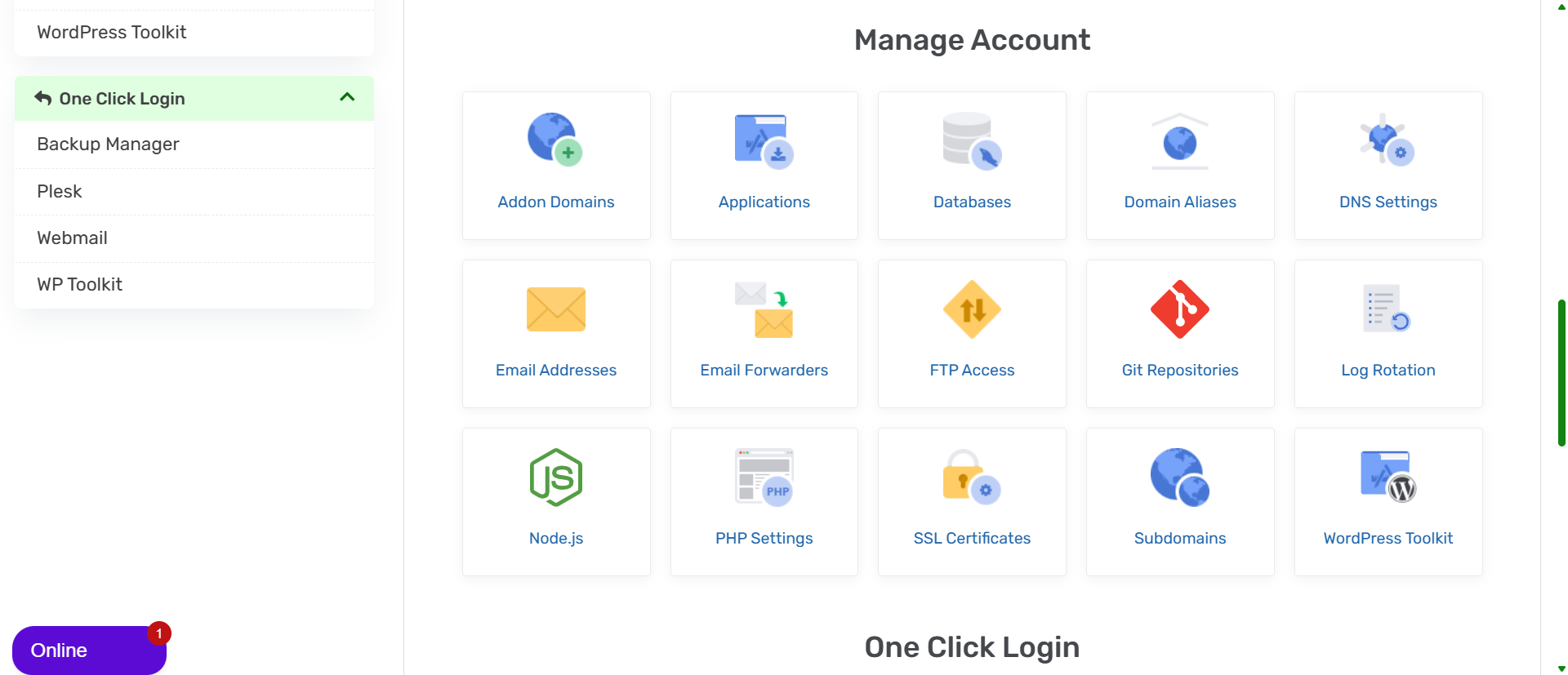
✓ Access Plesk with one click
✓ Manage websites, domains, emails, databases, and files
✓ Update account details
✓ View service usage information
The Login to Control Panel button provides direct access to Plesk without requiring customers to enter a second username and password.
Accessing Plesk From Client Area
To access Plesk:
-
Log in to your Client Area.
-
Open Services.
-
Select your active hosting service.
-
Click Login to Control Panel.
-
You will be automatically redirected to Plesk.
No additional login is required.
Troubleshooting
Login to Plesk Failed
Check:
-
Plesk username and password
-
Server connection status
-
API access availability
-
Firewall rules allowing Plesk connections
Hosting Account Was Not Created
Check:
-
WHMCS Module Log
-
Server connection settings
-
Plesk API response
-
Product configuration
-
Plesk service plan mapping
Single Sign-On (SSO) Not Working
Verify:
-
Plesk API is enabled
-
WHMCS can reach the Plesk server
-
Correct server hostname is configured
-
SSL certificate on Plesk is valid
Frequently Asked Questions
Does this integration support Plesk Obsidian?
Yes. The integration supports modern Plesk versions including Plesk Obsidian, provided API access is enabled.
Can I connect multiple Plesk servers?
Yes. Multiple Plesk servers can be added in WHMCS and assigned to different hosting products.
Do customers need separate Plesk login details?
No. Customers can access Plesk directly from their Client Area using Single Sign-On.
Are accounts created automatically?
Yes. Once payment is completed and the service is activated, WHMCS automatically creates the hosting account in Plesk.
Need Help?
If you need assistance with your Plesk hosting account, our support team is available to help.
You can contact support through your Client Area or open a support ticket for further assistance.